Software Updates
Firmware updates bring bugfixes, new features, and other improvements to your device. We recommend running the latest version!
Hak5 devices are built for security professionals: They are designed with root access available and the freedom to install any software or firmware. Hak5 is committed to providing reliable, unrestricted tools and open payload platforms that you can trust.
To ensure your Hak5 devices integrity, only download official firmware from the Hak5 Download Portal (verifiable via checksum). Genuine Hak5 firmware is never distributed by third party channels, and the newest firmware for your device will always be distributed only on the Download Portal.
Before you update
- The WiFi Pineapple Pager will preserve your system settings and the contents of your
/root/directory during an upgrade, however it is always a good idea before you update to back up any important data, by downloading your loot via SSH or the Virtual Pager. If you have developed any custom payloads or themes, it’s a good idea to save a copy of them as well. - Fully charge your device. While not strictly necessary, we strongly encourage you to fully charge the WiFi Pineapple Pager before performing a firmware upgrade. This helps ensure there is more than enough power for the update to complete, and helps keep the device cooler.
- Do not plug in or unplug your Pager, or plug in or unplug devices from the Pager, during upgrading.
By default, the upgrade process will retain your configuration and the contents of your root directory (payloads, themes, loot, etc).
It will NOT preserve any OTHER changes made to the filesystem - third-party packages installed with opkg or installed by payloads, any manual modifications made to files not in your root directory, and other changes will be lost.
Upgrading on-device
The WiFi Pineapple Pager can self-upgrade.
- Make sure that the Pager is online. Configure Wi-Fi Client Mode and connect to an access point with Internet access.
- Make sure your time and date settings are accurate. The Pager will automatically set the time via NTP when connected to the Internet. If the time and date are not accurate, SSL connections will fail.
- Navigate to
Settings>Updatesand choose ‘Check for Updates’ - Download the firmware upgrade, if one is available
- When asked to confirm installation, do so
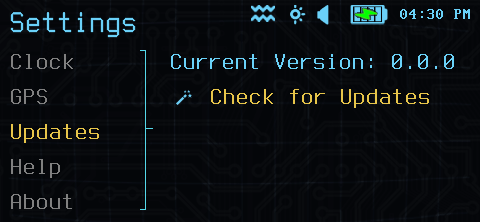

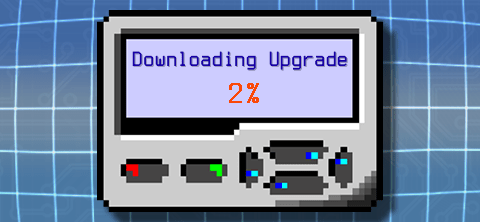
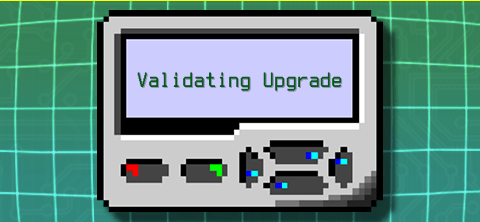
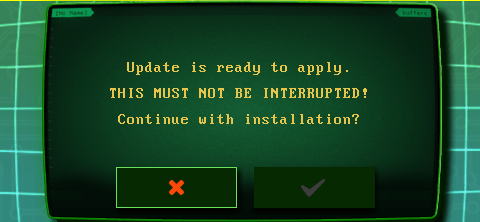
Once the firmware upgrade process is confirmed, it can not be cancelled or aborted. Do not power off your device, disconnect it, or connect or disconnect and USB devices from the Pager.
When the Pager has finished updating, it will reboot automatically.
The first boot after a firmware update will take significantly longer, as the internal flash is prepared and the configuration backup is restored. Subsequent reboots will be quicker.
Upgrading via SSH
If you do not configure the WiFi Pineapple Pager as a client device, or can not download the firmware directly on device, upgrades may also be performed over SSH.
- Download the latest firmware from the Hak5 Download Portal. Remember: The only source for official firmware is the Hak5 Download Portal. The latest firmware with the latest features will ALWAYS be found on the Download Portal. Firmware from other sources claiming to be official or to have newer features may damage your device.
- Copy the downloaded firmware to the WiFi Pineapple Pager using
scp. Check out the SSH connection section for more information on SSH and scp. The firmware should be copied to/tmp, for example,scp pineapplepager-1.0.0-firmware-signed.bin root@172.16.52.1:/tmp/ - Log in to the Pager over SSH
- Use the
INSTALL_FIRMWAREcommand to validate and install the firmware you copied.INSTALL_FIRMWARE /tmp/pineapplepager-xzy-firmware-signed.bin
Do not try to upgrade the firmware via the Virtual Pager shell!
While it’s not likely to cause any damage to your device, one of the first things the upgrade process does is stop all running services - like the service running the virtual pager. This can terminate your shell before the upgrade actually starts, leaving you in limbo!
The INSTALL_FIRMWARE command will automatically validate the firmware image and begin installation. Once you have run this command, upgrading the firmware can not be cancelled or aborted. Do not power off your device, disconnect it, or connect or disconnect and USB devices from the Pager.
When the Pager has finished updating, it will reboot automatically.
The first boot after a firmware update will take significantly longer, as the internal flash is prepared and the configuration backup is restored. Subsequent reboots will be quicker.