On-Device Setup
The WiFi Pineapple Pager brings an on-device onboarding experience with a retro flair.
Navigating the Pager
Navigate the UI using the buttons on the pager!
The DPAD (arrow buttons) move your selection up, down, left, and right.
The ‘B’ button (the left-most red button) is used to cancel most actions, or move backwards in the menus.
The ‘A’ button (the green button to the right) is used to activate, acknowledge, or move forwards in the menus.
Welcome!
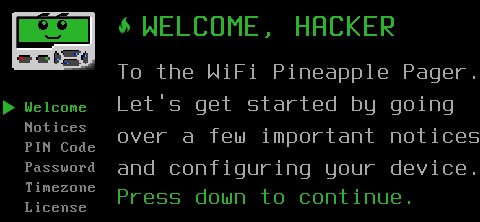
Welcome to the WiFi Pineapple Pager!
Setting a pin code
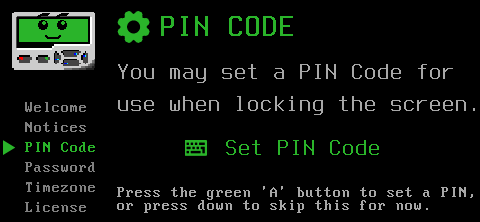
Set a PIN code
Setting a PIN code protects the on-device user interface of the WiFi Pineapple Pager, much like setting a PIN on a cell phone. While optional, if you plan to use your WiFi Pineapple Pager where others might also try to touch it, consider setting a PIN!
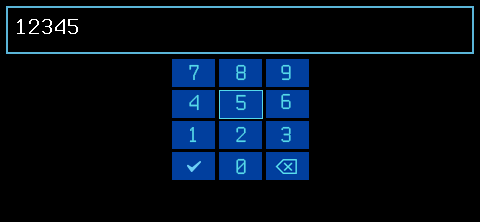
We recommend not using the pin code from your luggage
Setting a root password
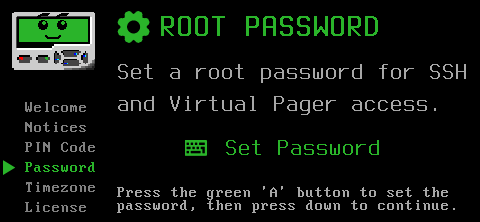
Set your root password
Setting a root password is a crucial part of protecting your device.
The root password sets the login password for SSH and the Virtual Pager when connected to the USB-C port or the WiFi Management networks.
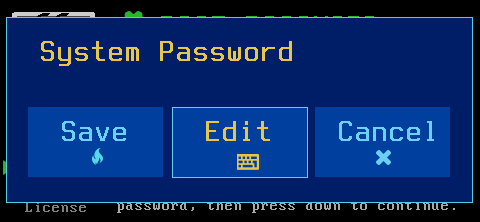
Edit your password
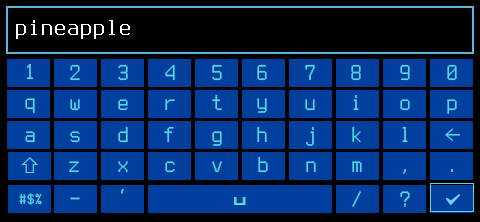
Enter your password
Enter your password using the DPAD arrows and the ‘A’ (green) button. We suggest setting a strong password - a mix of lower and upper case, numbers, and symbols will help keep your device secure!
Setting timezone
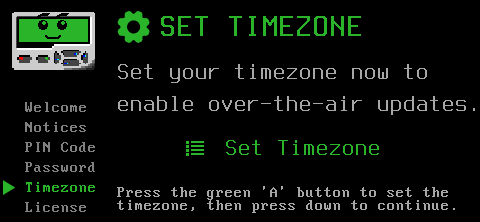
Configure timezone
The WiFi Pineapple Pager needs to know what your timezone is to accurately show the time.
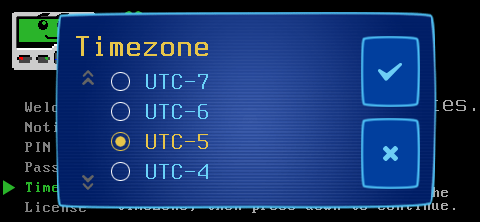
Select your timezone offset
License
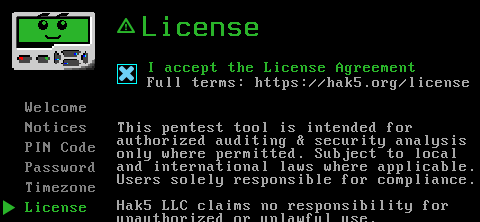
License terms
Finally, you must accept the Hak5 license agreements which are available in full at https://hak5.org/license
Congrats!
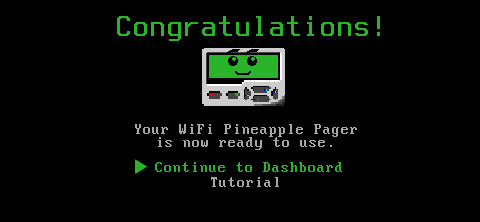
Congrats and welcome to your pager!