Pineapple Open AP
Open Wi-Fi networks offer no encryption and no verification of the connection. Despite the inherent risks, open networks are still in use everywhere - airports, coffee shops, corporate guest networks, and more.
The Pineapple Open access point can not only mimic a Wi-Fi network, it can mimic any Wi-Fi network. At the same time.
How mimicry works
Whenever a Wi-Fi client joins a network, it sends a special packet - a probe request. An access point willing to accept that connect then responds with a probe response packet.
Under normal circumstances, an access point only responds with the SSID (network name) it is providing - usually a one-to-one relationship.
Using a Wi-Fi attack called karma, a Pineapple in mimicry mode will answer any request for a network name with a response - for that same name. Once connected, the client considers the connection to be completely normal!
The SSIDs allowed to connect are controlled by the Pineapple filter system - keep reading for more information!
Enabling Pineapple Open AP mode
The WiFi Pineapple has four controls which impact Pineapple Open AP mode:
- Enabling the Open Wi-Fi access point itself. To mimic an Open access point, the open access point must - unsurprisingly - be turned on. The Open AP configuration can be found under
PineAP>Open AP. - Enabling mimic mode. With this disabled, the Open AP is just an Open AP - it will function for the configured SSID but nothing more. Mimic mode is found under
PineAP>PineAP>Mimic Open Networks - The Client filter. The Client filter controls what clients are allowed to join the Pineapple Open AP network. The Client filter can be found in
PineAP>Filters. - The Network filter. Network filter controls what network names the Pineapple Open AP responds to. The SSID filter can be found in
PineAP>Filters.
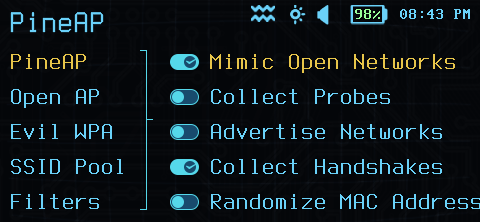
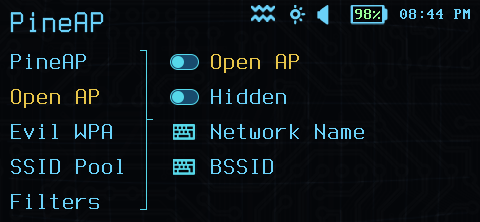
PineAP Configuration
Pineapple filters
The Pineapple filter engine is the main mechanism for scoping the WiFi Pineapple behavior for an engagement. Properly configuring your filters is a crucial part of impacting only the devices and networks you intend to!
Filter modes
Pineapple filters operate in two modes:
- Allow mode. In allow mode, only devices and networks in the allowed list may connect. All other connections are rejected.
- Deny mode. In deny mode, any device or network not in the deny list may connect.
So, for example, to allow any client to connect to the Pineapple Open AP using the SSIDs Test network and Free Wi-Fi, you would set:
- The device filter to
denymode, with no filter list (this allows any client to connect, useful with MAC address randomization) - The network filter to
allowmode, with the allow list containing the two SSIDs in the engagement.
Default filters
By default, the Pineapple ships with Client and Network filters both set to allow mode, with empty lists. This blocks all associations, which prevents a new Pineapple from interfering with nearby devices or networks unintentionally.
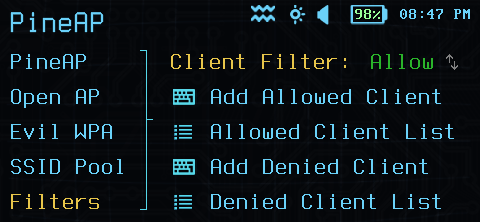
PineAP Client Filter
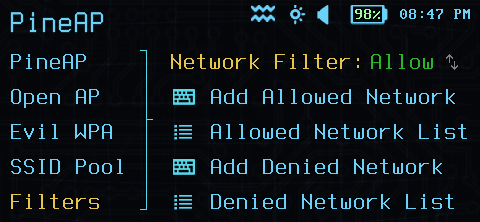
PineAP Network Filter
Pitfalls
- Remember filters!