PineAP
The WiFi Pineapple PineAP functionality controls network impersonation, client capture, connection filters, and the EvilWPA access point.
Understanding and configuring PineAP is crucial to properly scoping an engagement and limiting the impacted devices, and the PineAP display panel aims to make this as simple and reliable as possible!
Make sure to consult the documentation on PineAP functionality for more information about these options before your first engagement!
PineAP configuration
PineAP configuration is found under the PineAP category on the dashboard:

Select the PineAP category from the dashboard
PineAP Configuration
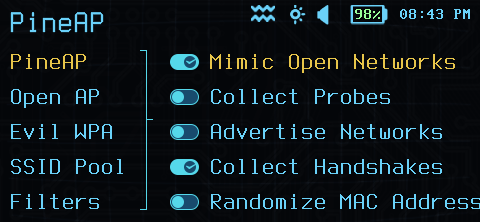
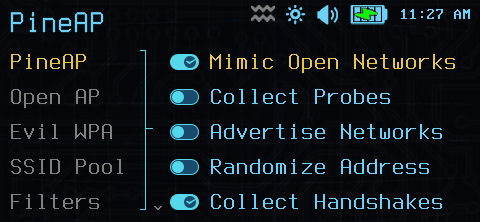
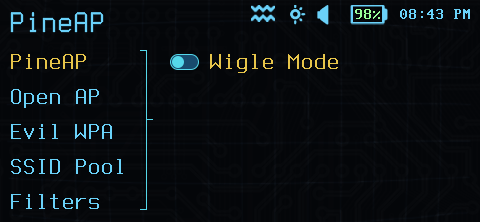
The PineAP Open Access Point functions as a trap for clients configured for connections to unencrypted access points.
The PineAP Open Access Point can capture a broad range of clients by mimicking multiple network names and automatically responding to any network requested.
To further entice clients to connect to the network, PineAP can advertise previously requested networks.
Basic PineAP configuration can be controlled here:
- Mimic Open Networks. This option toggles PineAP accepting requests for any Wi-Fi network name permitted by filters.
- Collect Probes. Automatically collect probed networks in the advertisement pool.
- Advertise Networks. Some clients will not attempt to connect to a network if it is not being actively advertised.
- Collect Handshakes. Automatically collect WPA-PSK and WPA2-PSK handshake data for offline attacks against the network passphrase.
- Randomize MAC Address. Randomize the MAC address used in advertising networks from the SSID pool.
- Wigle Mode. Enable Wigle Wardriving logs. This requires a USB GPS.
PineAP Open Access Point configuration
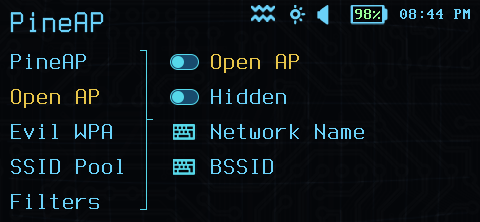
PineAP Configuration
To capture clients connecting to unencrypted access points, the Open AP must be enabled.
The Open AP requires a default SSID, however this may be hidden. A hidden SSID does not guarantee that the AP is undiscoverable, and clients that have previously seen the AP before it was hidden will continue to show the name.
By default, the PineAP Open AP uses the hardware address (BSSID) of the Wi-Fi interface in the Pager, but an alternate address can be specified with the BSSID option.
Learn more about the Pineapple Open AP functions!
PineAP EvilWPA Access Point configuration
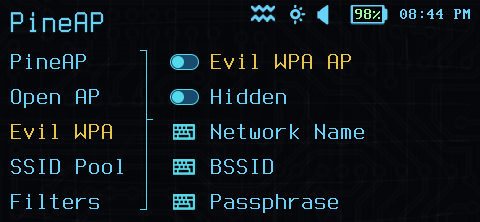
PineAP EvilWPA Configuration
The Pineapple EvilWPA Access Point can be configured to mimic an existing encrypted access point when the encryption key is known.
Additionally, it can be used to capture partial WPA handshakes (PMKID capture mode) which may be useful in offline attacks.
The EvilWPA AP requires a default SSID, however this may be hidden. A hidden SSID does not guarantee that the AP is undiscoverable, and clients that have previously seen the AP before it was hidden will continue to show the name.
By default, the PineAP EvilWPA AP uses the hardware address (BSSID) of the Wi-Fi interface in the Pager, but an alternate address can be specified with the BSSID option.
Learn more about the Pineapple EvilWPA AP functions!
SSID Pool
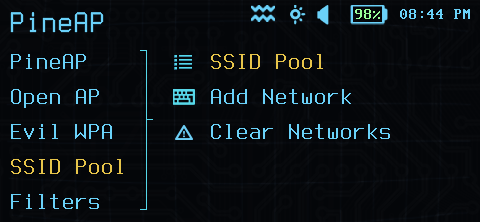
PineAP SSID Pool Configuration
The PineAP SSID Pool is the list of open networks used when the Advertise Networks option is enabled.
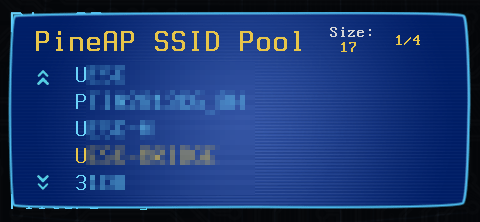
PineAP SSID Pool List
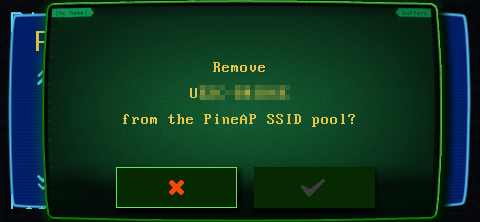
PineAP SSID Pool Editing
Filters
Filters are a critical part of the WiFi Pineapple ecosystem.
Filters allow you to scope your engagement, and only target the devices you plan to target.
PineAP filters apply to the Open and EvilWPA access points.
PineAP has two filters:
- Network filters. Network filters are applied to the network name (SSID) - only connections to a network name permitted by the filter may connect.
- Client filters. Client filters are applied to the client MAC address - only connections from a client permitted by the filter may connect.
Both PineAP filters operate in allow or deny mode.
- Allow mode filters only allow connections that are in the allow list. All other connections are rejected. Use an allow filter to scope your engagement to specific SSIDs, or to only target specific known clients.
- Deny mode filters allow any connection not explicitly in the deny list. Use a deny filter to block known clients or networks from an engagement.
Combining filters
Typically, PineAP filters of both types are combined. On an engagement where the target SSIDs are known, the Network Filter is set to Allow Mode, and the list of target SSIDs is added to the allow list. At the same time, the Client Filter is set to Deny Mode with an empty filter list, allowing the PineAP Open AP to capture any client attempting to connect to one of the target SSIDs.
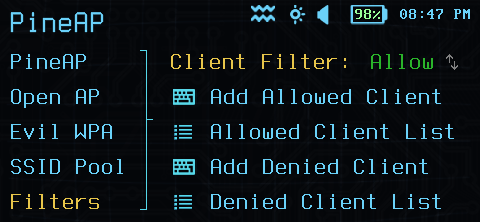
PineAP Client Filter
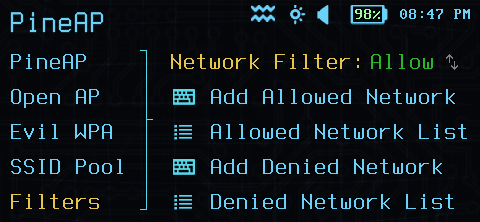
PineAP Network Filter
Client List
Finally, you can view the list of clients connected to the Pager on either the PineAP Open or the PineAP EvilWPA access points. From within the client list you can view details and kick clients from the access point, automatically adjusting the filters to prevent the client from reconnecting.
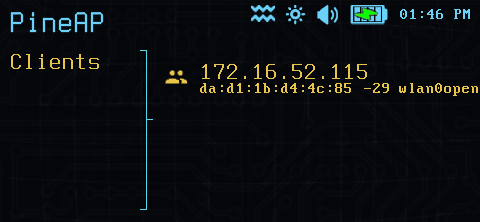
PineAP Client List
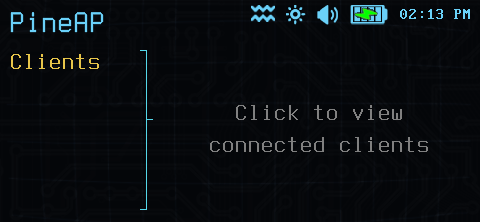
PineAP Client List