GPS
You can add a USB GPS receiver to the WiFi Pineapple Pager; this lets the Pager know where it is.
With a GPS, the Pager is able to collect access point locations and log them to a Wigle compatible file for uploading!
Expectations about GPS
A very important thing to remember about a USB GPS receiver is that it is highly unlikely to perform like a smartphone. The location data provided by a smartphone is almost always a fusion of muliple location services - GPS, cellular, Wi-Fi, and Bluetooth positioning all feeds into the location system, and actual GPS is rarely the primary source.
Pure GPS requires a clear view of the sky, and many GPS devices may require fifteen to thirty minutes to get a positional lock, however once locked, most units will get future locks quickly.
Often true GPS will not work indoors, and may not even work near a window with a partial view of the sky. This is, unfortunately, normal. The signals from the GPS satellites are extremely weak, and the system was designed with a clear sky view as a requirement.
Different GPS hardware may have wildly different performance in terms of lock speed and ability to lock with partial view of the sky.
Always check the manual for your GPS hardware for settings and suggested antenna orientation!
GPS devices
The WiFi Pineapple Pager supports nearly all USB serial GPS devices - in fact we have not yet found one readily available which is not supported - however not all devices are designed equally.
Much like Wi-Fi devices, what matters with a GPS is the radio inside, not the name on the plastic. Also much like Wi-Fi, different GPS receivers have different sensitivity and supported satellites.
The term GPS is technically misused - a more accurate term would by GNSS (Global Navigation Satellite System). There are multiple global positioning constellations operated by different nations. The satellites operated by the United States use the brand GPS, however other networks such as GLONASS, Galelio, and BeiDou are operated by Russia, the European Union, and China, respectively.
Some GPS receivers are able to combine signals from multiple operators - these tend to be able to obtain a position faster and more reliably than receivers which are only able to use one set of satellites.
Receivers we have found to be useful in testing include:
- U-Blox M8030-KT. This receiver can be found in many readily available USB devices.
- Quectel. This receiver can also be found in many USB devices.
These are by no means the only receivers available, nor the only ones which will work, however these receiver chipsets can be commonly found, and support multiple GNSS satellite types. In general when purchasing a USB serial receiver, check for:
- Advertised Linux support. While almost any should work, advertised support increases the odds.
- A listed receiver chip type. There are many, many clones on the market, and often when no receiver type is listed, it is the most basic version. Listing a receiver type helps identify the higher-end devices.
- Multiple constellation support. Whenever possible, select a device with GPS, GLONASS, Galelio, and BaiDou support.
High-End GPS hardware
Some GPS receiver hardware is advertied as very high end, high speed, and high precision. This can be true, and as long as it outputs a compatible format (most do) it will work, however that degree of precision and update speed is not necessary for Wi-Fi mapping, and may introduce configuration complexities and additional cost for little or no benefit.
Configuring GPS
GPS is configured via the UI under Settings > GPS:
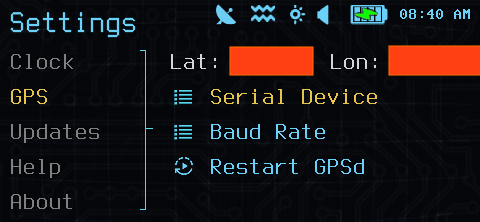
GPS settings
You can also set the GPS using the command-line DuckyScript commands GPS_LIST and GPS_CONFIGURE.
Serial port
Supported GPS devices connect as a USB serial device. Typically these will be named ttyUSBx or ttyACMx depending on the serial converter chip the manufacturer used; unfortunately, these serial port numbers can change if the order that USB devices are plugged in changes.
To address this, the Pineapple Pager uses the USB device path to identify a serial device. This path is based on the physical hardware of the pager and USB hubs.
A GPS device connected to the USB-A port will typically appear as 1.1_1-1.1:1.0, indicating the USB bus and port. A GPS plugged into a hub plugged into the USB-A port may appear as a different path.
As nearly all users will have a single GPS unit, in almost all situations, only a single serial device will appear in the list!
Want to find out what the original serial port device is? Just log in over SSH or the Virtual Pager terminal!
  root@pager:/mmc/root# ls -l /dev/serial/by-path/1.1_1-1.1:1.0
lrwxrwxrwx  1 root  root  12 Jan 23 14:05 /dev/serial/by-path/1.1_1-1.1:1.0 -> /dev/ttyUSB0
You might notice other devices in this directory as well - those are internal, unused devices on the Pager; we hide them in the UI automatically because they can never be a GPS!
Baud rate
Serial GPS units must have the proper speed setting for the serial port. Typically this is one of:
- 4800
- 9600
- 115200
When in doubt, check the manual for your GPS receiver for the correct speed. Other speeds are possible, however rarely used.
After changing the GPS serial port or baud rate, choose Restart GPSd.
Testing GPS
Once the GPS has a lock, the GPS icon in the status bar will highlight, and the position data in Settings > GPS will reflect the current position.
Remember - getting a GPS lock may take fifteen to thirty minutes, or sometimes more, depending on your view of the sky and your GPS receiver hardware! Unfortunately this is a limitation of the GPS/GNSS network, not the WiFi Pineapple Pager!
Real-time information about the GPS unit including number of satellites and lock status can be viewed with the command-line tool cgps, either via ssh or in the terminal of the Virtual Pager.
Wigle and Wardriving
Wardriving (derived from wardialing, a once-popular method of finding exposed resources by calling every phone number in an area code and mapping where modems were found) is the hobby of collecting information about Wi-Fi networks.
Wigle is a world-wide central, public database of Wi-Fi position information collected by members, using tools like the official Wigle Android app, Kismet, or now, the WiFi Pineapple Pager.
With Wigle enabled via Recon > Settings, the Pager generates a Wigle-compatible log in /root/loot/wigle/. This can be downloaded via scp or sftp, or via the Virtual Pager Download Loot and uploaded to Wigle.
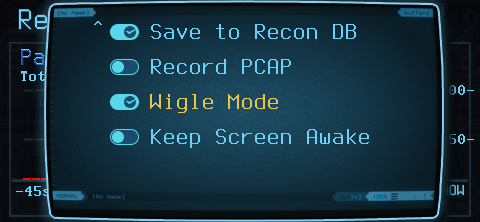
Wigle capture
You can also use the command-line DuckyScript commands WIGLE_START and WIGLE_STOP to enable Wigle logging, and the commands WIGLE_LOGIN and WIGLE_UPLOAD to automatically log in to your Wigle account and upload logs.
Please remember: Hak5 is not officially affiliated with Wigle. Accounts you create and information you share with Wigle are subject to the Wigle End User Agreement. The WiFi Pineapple Pager will never automatically interact with Wigle - even when creating a Wigle log file - unless you log into a Wigle account and choose to upload using the DuckyScript commands or a payload.